Choose an NSFW AI generator when you need a new adult image or character. Choose an image editor when you already have an approved source and need one controlled change. Use image-to-video for motion from a still frame, a video editor for review and changes inside an existing clip, and continuation for one new segment after a stable ending. A practical project can connect these workflows, but each step should still have one input, one creative decision, and one review.
Step 1: establish the adult character
Choose original creation or an authorized reference. Define presentation, archetype, and visual style. Keep a neutral 3:4 portrait with face, hair, age cues, and build easy to read. This becomes the identity anchor for the project.
Use Adult Character Creator for a fixed combination or optional reference. Record the selected traits and a short identity block. The adult character generator guide gives the full review checklist.
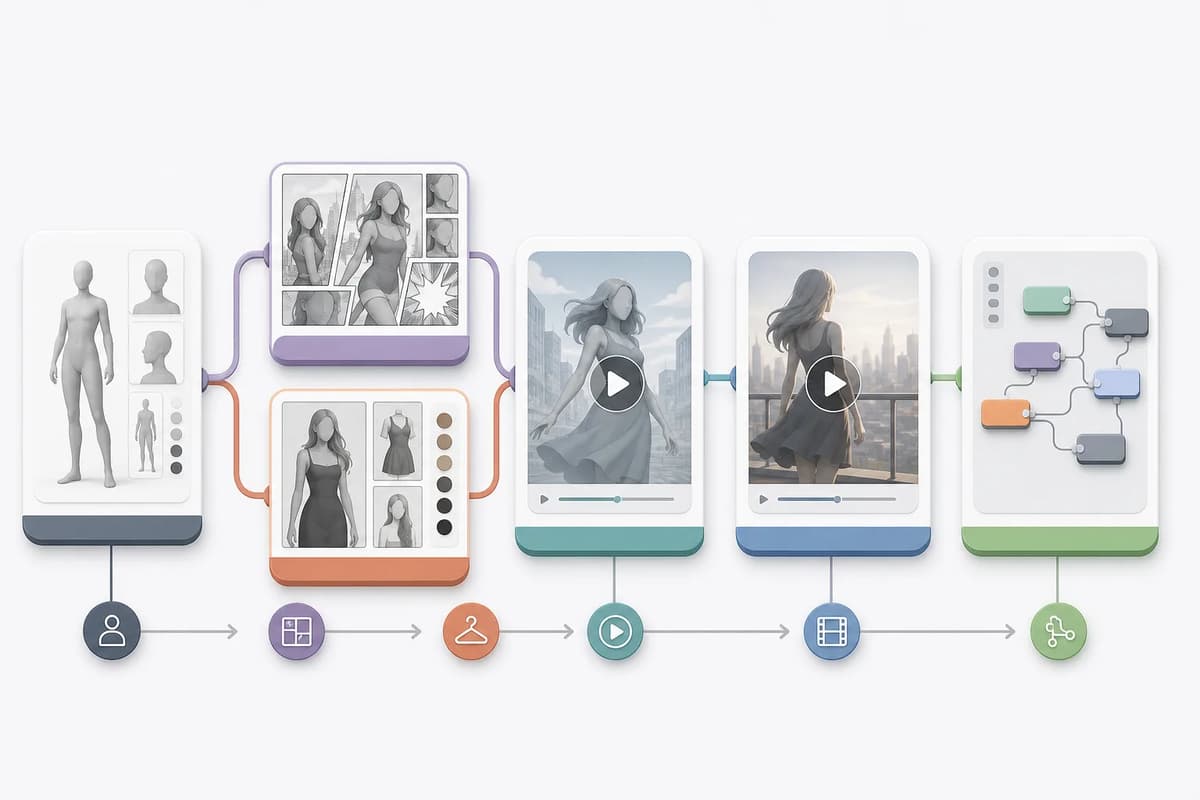
| Stage | Input | One main decision | Output |
|---|---|---|---|
| Character | Traits and optional reference | Presentation, archetype, style | Neutral 3:4 adult portrait |
| Comic | Character image | One of six scenes | Single full-color manga image |
| Makeover | Original or approved result | One of six restyles | New identity-preserving image |
| Animation | Clear character image | Action, output settings, and 4–30 seconds | Short video with optional generated audio |
| Continuation | MP4/MOV up to 15 seconds | One story direction | Separate extension with optional generated audio |
| Canvas | Approved artifacts | Arrangement and further editing | Project composition |
Step 2: choose comic or makeover
Use a comic when the goal is one composed scene with a relationship, setting, camera, and light. Select one of six scene directions and keep the neutral portrait as the source. Exclude panels, text, speech bubbles, and watermarks for a single-image workflow. Open Adult Comic Generator to compare the scene presets.
Use a makeover when the goal is styling or environment while preserving identity. Keep original, previous, and current versions. Continue only from approved results. Open Adult Makeover for lingerie, leather, fantasy, hotel, poolside, or dark-club directions.
The two paths can connect: a stable makeover can become a comic reference, but keep the neutral anchor available if the face drifts.
Step 3: prepare an image for motion
Choose an approved image with readable face, limbs, and background. Match the source pose to one fixed action. Begin with four seconds and a restrained camera. Use an optional prompt only for supporting light, environment, pace, or framing.
For a real person, obtain specific adult-animation consent and enable the paid real-person control. If detection finds a person while the control is off, the interface should open the feature and explain the requirement. Provider review still applies.
Open Adult Image Animator after the source passes the image-to-video checklist.
Step 4: continue from a stable ending
Video continuation uses a short existing clip and one next story direction. The source should be MP4 or MOV, no more than 100 MB and 15 seconds, with a clear final frame. Preserve character, room, light, camera, and pace.
The output is a separate clip. It is not automatically joined to the source, and generated audio is optional rather than a continuation of the source track. Open Adult Video Continuation for default directions and an optional supporting prompt. The continuation guide explains seam review.
Step 5: use intensity and paid controls deliberately
Mature is the default and should produce a strong sensual adult result without explicit anatomy or sex acts. Explicit is paid and uses a different internal prompt describing direct adult content. Real-person mode, longer video durations, and certain actions are separate paid capabilities.
Do not write the product labels into prompts. Let controls map to concrete scene instructions. The Worker should validate entitlement before credits or provider submission. Read mature versus explicit AI content for the distinction.
Step 6: review every artifact before continuing
Use the same order across images and video:
- Clearly adult and consensual context.
- Authorized source and real-person scope.
- Stable face, hair, build, and age cues.
- Requested scene, action, or makeover is readable.
- Anatomy, hands, clothing, and background are usable.
- No unintended person, text, logo, or watermark.
- Final frame or image can support the next step.
Reject failed identity before it becomes the next source. A polished mistake compounds across a chain.
Step 7: organize results without a complex version tree
Media History is the durable artifact record. Download approved results or open them in Canvas. Within a makeover page, original, previous, and current are enough for short rollback. Within video generation, keep the active run pointer so refresh resumes the same task rather than creating another charge.
Use descriptive internal names without personal data. Store consent and model-license evidence separately. The upload privacy guide covers metadata and retention.
Control cost through focused decisions
Review the credit quote before each generation. Fixed image size, reference count, video duration, and real-person processing make the quote understandable. Cost control comes from avoiding invalid combinations and testing short video first, not from an unsupported universal price claim.
If a provider refuses or a workflow fails, the run should finalize, refund once, and release a free-trial reservation once. Do not repeat equivalent prompts to evade a refusal.
Final workflow
Create one stable adult identity, choose one generator or image edit, animate a clean approved image, review the video, continue only from a stable ending, and collect selected artifacts in Canvas. This sequence keeps character identity, rights, credits, and review decisions visible. The seven focused tool pages form one discoverable workflow map, while each page still owns a distinct input and result.
At each handoff, carry forward only the approved artifact and the few controls that explain it. Do not copy an entire failed prompt history into the next tool. A clean handoff makes the following quote, generation, and review easier to understand.