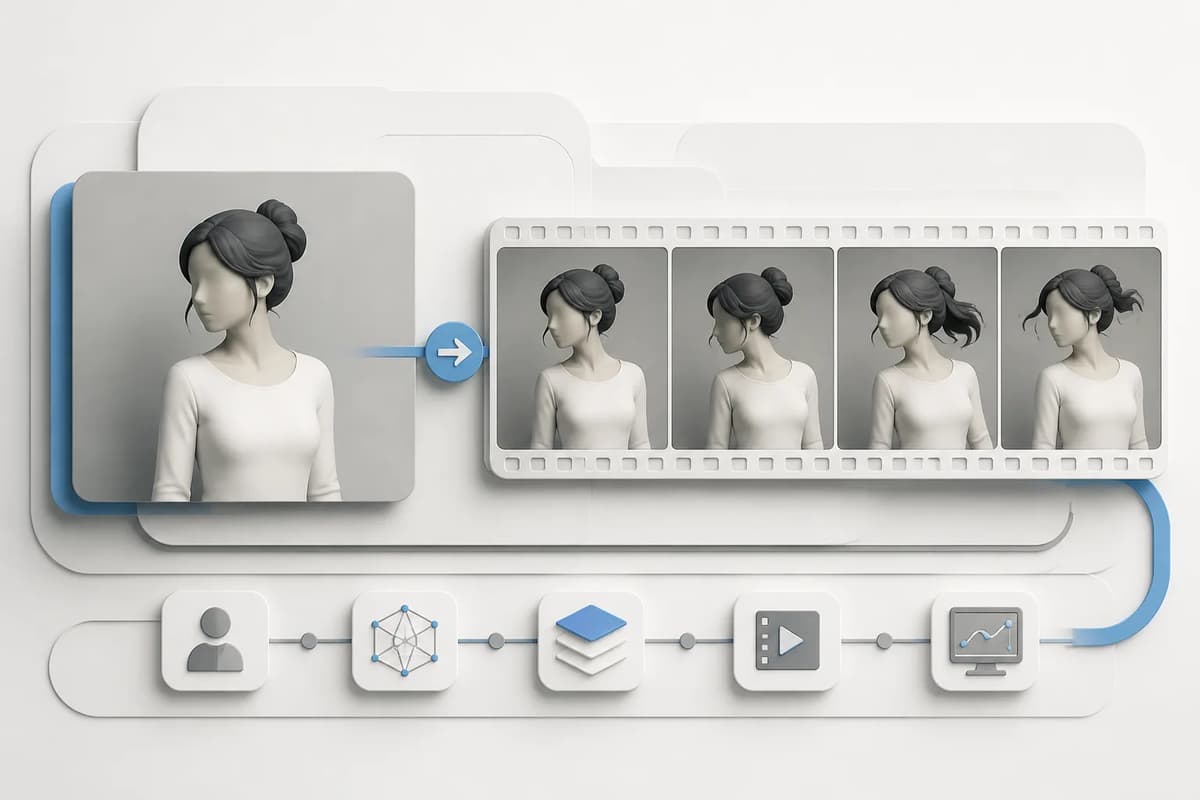
Adult image-to-video works best when one clearly adult character is easy to read, the starting pose matches the chosen action, and the clip stays short enough for stable motion. Upload an authorized image, select one fixed action, begin with four seconds, and review identity, anatomy, camera movement, and background continuity before extending duration. Use real-person mode only with specific consent and an eligible paid account.
Prepare the starting image
Choose a frame with a visible face, clean hair outline, readable limbs, and a background that can tolerate movement. Avoid group images, cut-off hands, heavy motion blur, complex reflections, and extreme perspective. A standing or full-body source supports dance and approach actions; a seated or close portrait supports smaller torso and camera movement.
The source does not need to be explicit. A clear mature portrait often provides a better motion anchor because anatomy and clothing edges are easier to interpret. If you created the character in Flowith, use an approved result from Adult Character Creator or a stable makeover version.
| Source quality | Helps with | Risk when missing |
|---|---|---|
| Face visible | Identity across frames | Face substitution or blur |
| Limbs readable | Action trajectory | Extra limbs or joint distortion |
| Pose matches action | Natural motion | Sudden body repositioning |
| Simple background | Camera continuity | Warping objects and reflections |
| Clearly adult subject | Safe adult workflow | Age ambiguity and refusal |
| Authorized real-person use | Lawful transformation | Consent and privacy harm |
Choose one action that fits the pose
A fixed action should describe a specific motion path, camera behavior, and expected finish. Do not combine a dance, clothing change, impact movement, and camera orbit in one short clip. Choose the most important visible change.
For subtle actions, use a source already close to the desired pose. For stronger movement, leave room around the body. Explicit-only actions should automatically select the explicit content level and remain unavailable to free users. If a user selects such an action directly through an API without eligibility, the request should be rejected before provider submission or credit use.
The NSFW AI video prompt guide explains how an optional supporting prompt can add environment or camera detail without replacing the action.
Start with four seconds
Four seconds is enough to verify whether the model understands the person and action. Longer clips provide more time for motion but also more opportunities for face, anatomy, wardrobe, and background drift. A paid creator can move to six, eight, or ten seconds after the short test succeeds.
Use this duration rule:
- Four seconds for first motion and identity check.
- Six seconds for one complete moderate action.
- Eight seconds for action plus a controlled camera change.
- Ten seconds only when the source and motion are already stable.
The adult video cost and duration guide connects duration to credits, iteration speed, and review effort.
Handle real-person material explicitly
If the system detects a real person and real-person mode is off, the interface should open that control and explain what happened. A free user should see the relevant paid feature offer. A paid user with permission can enable the control and retry. The product should not silently route real-person media through a different provider path.
Specific consent must cover adult animation. General permission to use a portrait is not enough. Never use private, leaked, or age-ambiguous material. Keep identity documents and permission records outside prompts and media metadata. Read the real-person consent guide before working with any recognizable person.
Add an optional prompt only for support
The action and intensity controls already define the core motion. Use optional text for one environmental or camera addition: “warm window light and a slow push-in,” “steady full-body framing,” or “soft fabric movement in a quiet hotel room.” Avoid writing a second action that conflicts with the selected one.
Do not include personal data, links, or hidden instructions. Keep the prompt under a clear length and use plain visual language. If the model refuses the scene, accept the refusal rather than trying to disguise the same request.
Review the entire clip
Watch at normal speed and frame-step the beginning, middle, and end. Confirm the same adult identity, stable face and hair, plausible joints, controlled action, and coherent background. Check whether the camera changed unexpectedly, clothing flickered, a new person appeared, or anatomy crossed the frame incorrectly.
Review checklist:
- First and last frames describe the same person.
- The selected action is readable without a caption.
- Hands, face, and body remain plausible.
- Background lines and objects do not pulse or bend excessively.
- No text, logo, watermark, or unintended audio appears.
- The result is suitable for the intended adult audience and destination.
Save and continue
Successful results should enter Media History and remain downloadable. Open the artifact in Canvas when you need to compare versions or combine it with other project material. Audio is optional and should be reviewed separately; the focused workflow does not provide timeline editing.
If the clip will be continued, choose a result whose final frame remains clear. The adult video continuation guide explains how to describe the next beat without asking the model to rewrite the entire scene.
Final takeaway
The fastest route to a usable adult animation is a clear authorized source, one compatible action, and a short first run. Verify identity and motion before extending duration. Keep real-person capability explicit and paid, use optional prompts only for support, and treat provider review as a boundary rather than a prompt puzzle.
Keep the approved four-second result even when you later generate a longer version. It remains a useful baseline for diagnosing whether duration caused drift and a safer source for a new continuation experiment.